mpv https://stream.nightride.fm/chillsynth.ogg
1 Like
I didn’t know their were radio streams with ogg extensions. The one I listen to hides the extension but mpv figures it out.
What I did was put that mpv STREAM command into a simple bash script and made it executable in the terminal. For CLI editing I use nano. CTRL-X will exit and then Y will save. Do a chmod +x to make it executable. Once this is working u can put that onto your Ubuntu Touch Desktop by creating another file using the terminal again. I found directions using Brave AI. Reboot when done and then when it starts again it should be on the desktop. I’m just not sure how to gracefully stop this!
To add a Bash script to the Ubuntu Touch desktop as a launcher, create a
.desktopfile that points to your script. Place this file in~/.local/share/applications/so it appears in the app grid.Steps to Create a Desktop Launcher
Create the
.desktopfile:
Use a text editor to create a file likemy-script.desktopwith the following content:[Desktop Entry] Version=1.0 Type=Application Name=My Script Exec=/path/to/your/script.sh Icon=/path/to/icon.png Terminal=true X-Ubuntu-Touch=true X-Ubuntu-Default-Department-ID=accessoriesEnsure the script is executable:
Run:chmod +x /path/to/your/script.shPlace the
.desktopfile:
Save it in~/.local/share/applications/. The system will detect it and show the launcher in the app grid.Pin to desktop (if supported):
Open the app grid, find your script launcher, and use the long-press menu to pin it to the desktop.Note: Ubuntu Touch restricts execution from
/homedue to AppArmor. If your script is in/home/phablet, move it to/optor another allowed directory and update theExecpath accordingly.
Also, /opt is not allowed to be written in by a user-Brave AI gives some old and messed up advice. User phablet is allowed to write files in their directory using the terminal which authenticates u. I have mine saved in /home/phablet/radio.sh
Nightride.fm has many streams and all of them come in all compressions, mp3, mp4, ogg etc
This is the Linux way to make shortcuts, “desktop launchers”.
Any idea how to stop the script executed from the desktop?
Those launchers can be pinned on the taskbar so holding on the icon you can close the process. Maybe even as it is it creates a icon on the taskbar while running.
Else you have to make it somehow to listen to events, I haven’t ever thought of that because you are supposed to launch graphical applications so I will have to research it.
One way would be to make it run in a visible terminal.
Another way is to use the GUI for mpv, usually SMPlayer.
maybe this can run, smplayer (aarch64) | Packages | Arch Linux ARM , it has many dependencies
I have SMPlayer snap installed.
so the mpv should be already set as the default player, there should be some setting to disable the video area when you play audio or generally.
also try VLC, it’s excellent except that it can’t play Youtube
I was wrong. I found the smplayer snap but it wouldn’t install. Same with vlc.
There is a GUI media player installed in UT but I can’t figure out how to make it open anything but a file.
What errors do you get from the snap? Is it a dependencies issue?
Search the documentation , it may not be able to open streams.
When the mpv script runs, nothing is in the taskbar.
It is not available for this architecture.
This is why I gave you the Arch Linux ARM link, if you meet the dependencies it will run as a binary.
Just decompress the package and try to run the executable.
Ok. BTW, there are no man pages in UT. The only documentation is online
I have this downloaded. The UT package installer doesn’t want to install this as is. I will see if tar is installed in UT later today.
Don’t install anything, you can’t, it’s a different packaging system(pacman), you can only try to find an executable in the package and run it in terminal or through your script like ./smplayer. You may also need to change the permissions of the file to executable.
1 Like
Ok-I will let u know. Maybe I could get the script to open the terminal and then hit CTRL-C to make it stop. This is why people came up with XKill but that is not in the Open Store!
This can only be done if the command runs in the terminal, else you have to open a terminal and issue a pkill command, https://linuxize.com/post/pkill-command-in-linux/, maybe you can also send a softer termination signal but I don’t remember the commands right now, it’s some parameter in the pkill.
I will create a second script to kill the first one by PID. Tar in UT didn’t know what to do with the file that arch compressed. I took a screenshot for u and attached it.
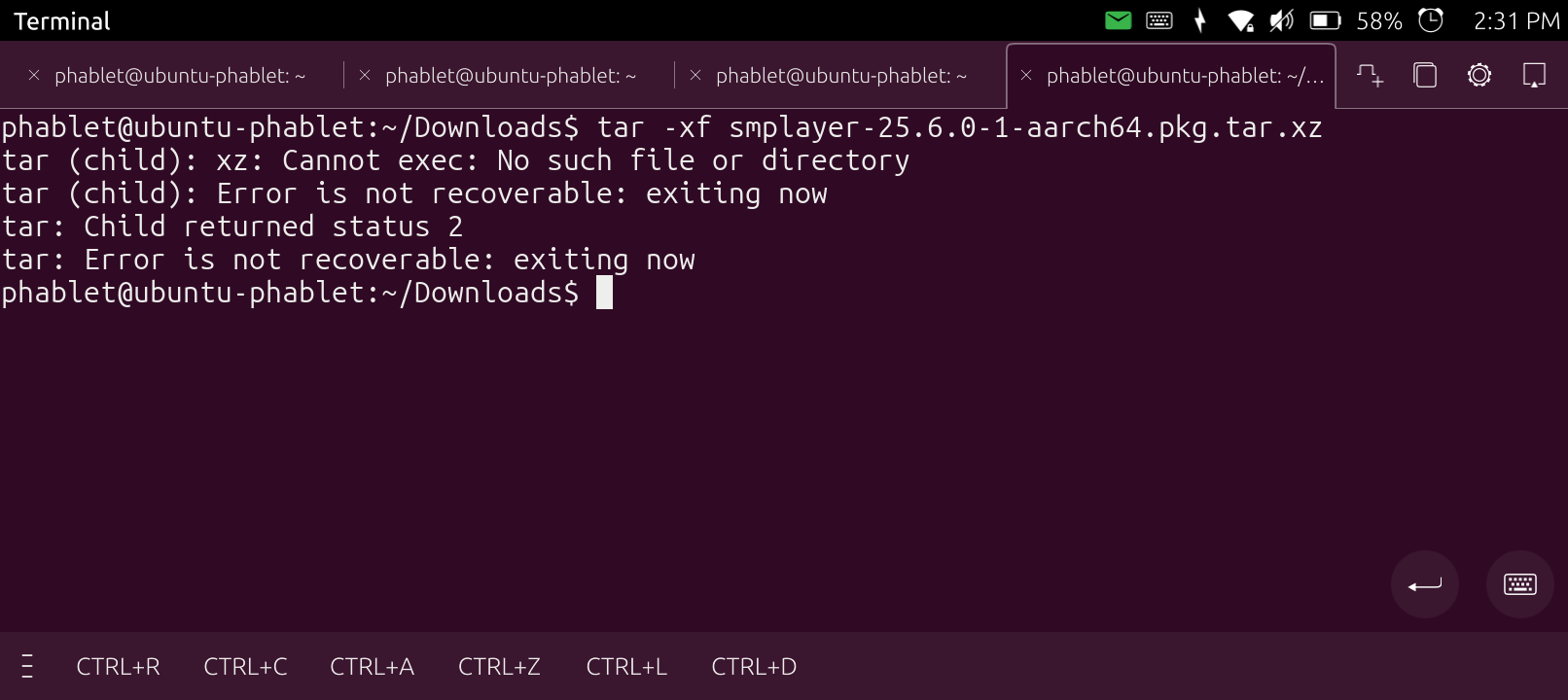
As I can understand it calls xz to decompress the file but xz is not installed, tar just packs all the files in one, it doesn’t compress.
Try the unxz command and then tar.
1 Like